

What's new
Auto reframe or Full frame? Compare both before you start
Framing in Clip settings shows Auto reframe and Full frame as two picture cards, side by side. See what each one does and pick before you start a clip job.
Start a clip job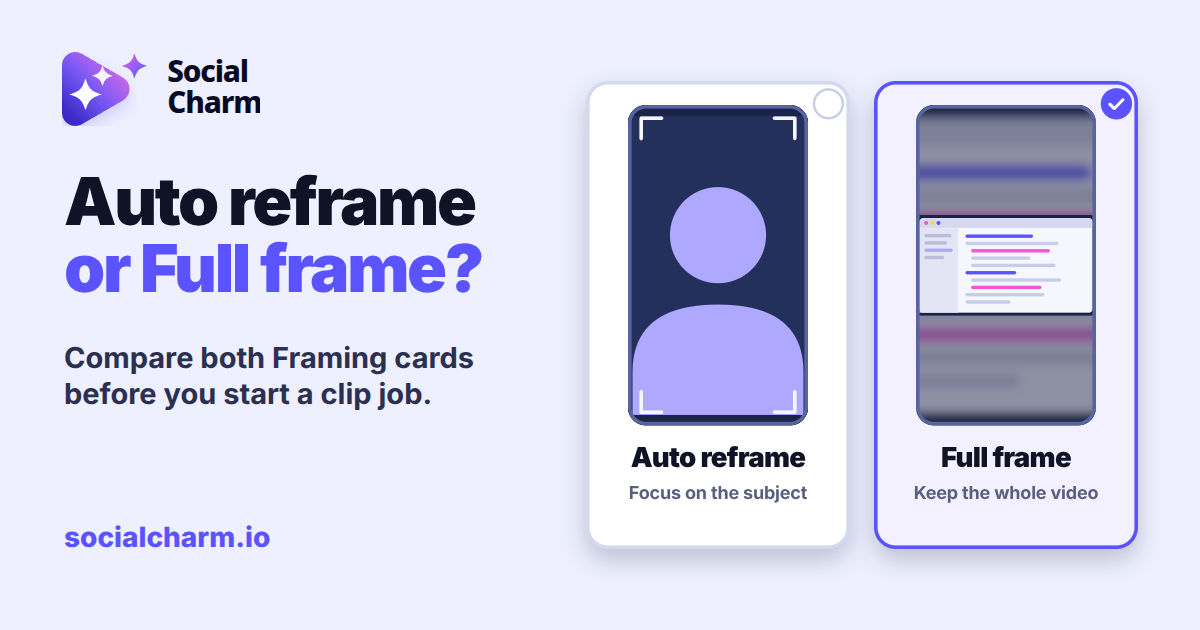
What you see under Framing
When you set up a clip job, Framing in Clip settings shows two cards side by side. Each card has a small picture of what it does, so you can compare the two options at a glance and choose before you start.
- Auto reframe: Focus on the subject. The picture shows a tall crop around a person, taken from a wider recording.
- Full frame: Keep the whole video. The picture shows the complete wide video in a tall frame, with blurred padding above and below.
The card you choose gets a highlighted border and a checkmark. Auto reframe is selected when you start a new clip job. On a phone, the two cards stay side by side.
Which one to choose
If a person talking to camera is the focus of your recording, Auto reframe is already selected. If you recorded slides or your screen, the note under the cards suggests Full frame: "Recording slides or your screen? Choose Full frame to keep everything visible."
Set it for your next clips
- From your dashboard, add your next recording and continue to Clip settings. If you've saved Brand Guidelines, they're already selected on the same page.
- Under Framing, click Auto reframe or Full frame. Changing Genre afterwards keeps the framing you picked.
- Finish your other settings and click Start processing as usual.
Choosing with a keyboard
The two cards work like standard radio buttons. Press Tab to reach them, use the arrow keys to move between Auto reframe and Full frame, and press Space to select. Screen readers announce each card's name and description; the pictures are decorative.
This update changes how the choice looks in Clip settings. The two framing options and your other settings work as before. When your clips are ready, you can review every clip at a glance in the clip gallery.