

What's new
Your saved Brand Guidelines, already selected on new clip jobs
When you start a new clip job, Social Charm selects your saved Brand Guidelines template and loads its caption style. You can opt out for any single job.
Review your Brand Guidelines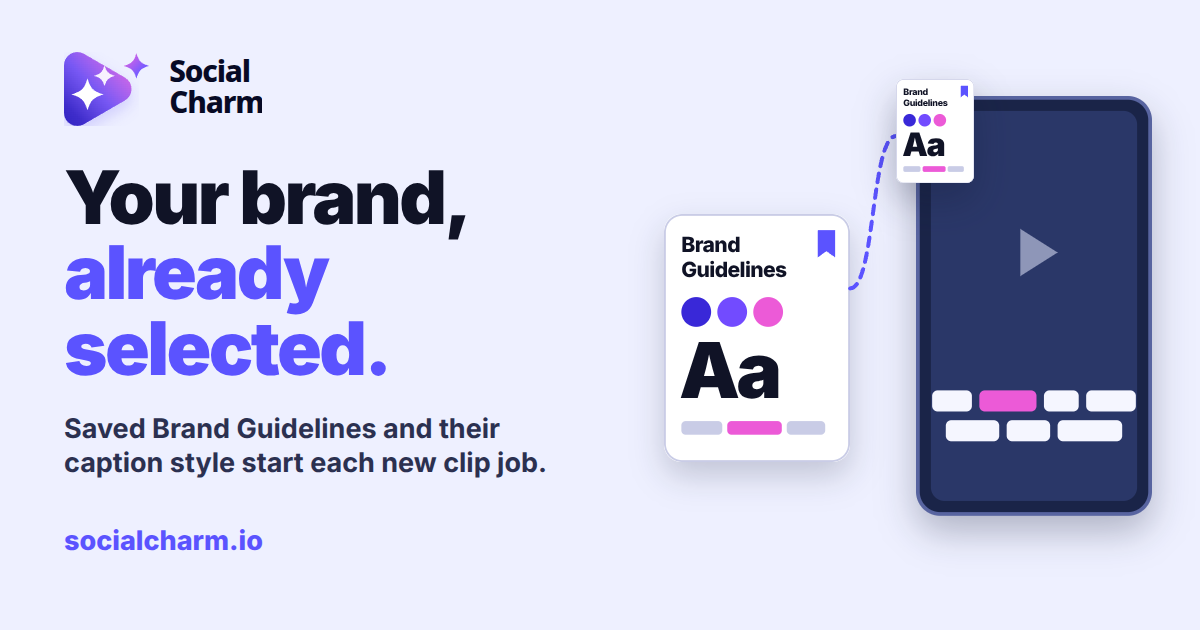
What happens when you start a new clip job
If you've saved a template in Brand Guidelines, Social Charm selects it in the Brand Guidelines dropdown on Clip settings each time you set up a new clip job. The template's caption style is loaded with it, so the next episode, webinar or workshop starts from the setup you already chose. This also works when your account details finish loading a moment after the page opens.
Set up your next clips
- Open Brand Guidelines and check your saved template. If you haven't saved one yet, create it there first.
- Add your next recording from the dashboard and continue to Clip settings. Your saved template is already selected under Brand Guidelines.
- Keep it for this job, or change it as described below, then continue as usual.
Use a different setup for one job
Choose No Brand Guidelines in the dropdown to opt out for that job, or pick another caption style. If the app refreshes your account details in the background while you're on the page, it keeps those choices. Selecting a brand template again loads that template's caption style.
The opt-out applies to that job only. Your saved template stays in Brand Guidelines, and your next new clip job starts with it selected.
Clips you've already made
This changes how new clip jobs start. Clips you've already made stay as they are.
When your clips are ready, you can review every clip at a glance in the clip gallery.