

What's new
Tell your recordings apart by picture
Each new video file you upload saves a small picture from its first second. It shows on Recent uploads and in your Uploads list, so you can spot the recording you want.
Open your Uploads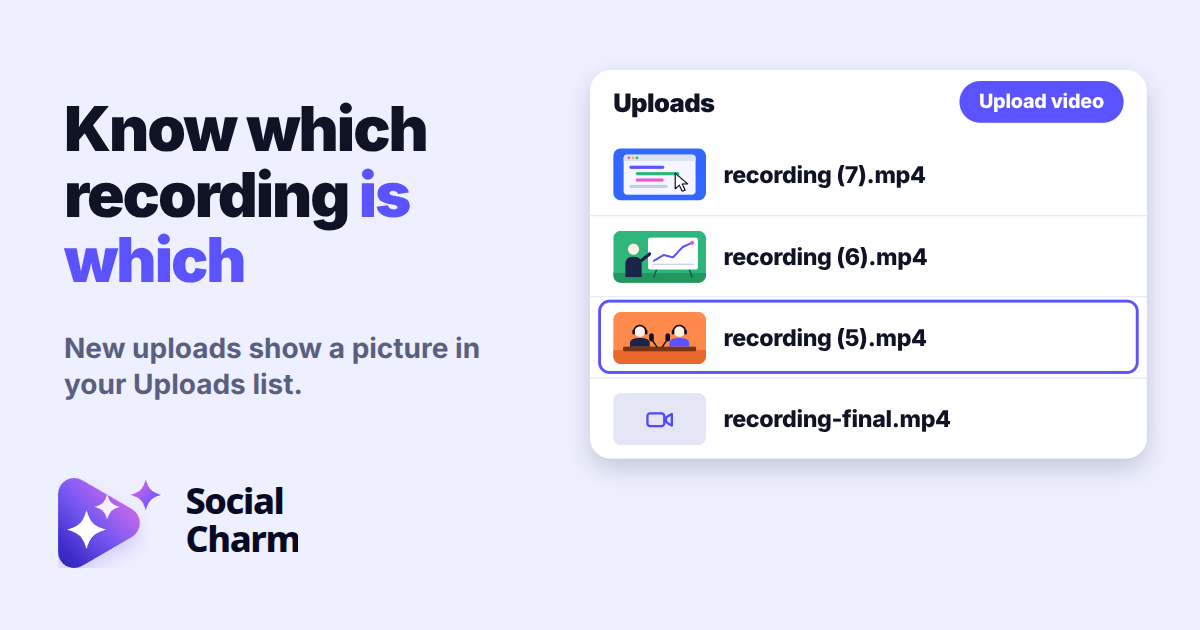
What you'll see
When you upload a video file, Social Charm saves one small still from the video's first second while the upload runs. That picture then appears in two places:
- on the Recent uploads card on your Dashboard
- at the start of the upload's row on the Uploads page
File names like recording (1).mp4 and recording-final.mp4 don't say much. A picture of two hosts at their microphones, or of a chart on a whiteboard, usually does.
Links from YouTube
If you started a job from a YouTube link, its row shows that video's own YouTube preview picture. Links from other sites have no preview picture.
Try it with your next recording
- Go to your Dashboard. The Upload video button on the Uploads page takes you there too.
- Upload your next video file as usual. The picture is saved during the upload, and the upload itself works the same way.
- Look at Recent uploads, then open Uploads and find the recording by its picture. Click its name to open its processing job page.
Good to know
- The picture is stored privately and appears only on your own dashboard.
- File uploads from before this update keep the video icon. Pictures aren't added to them later.
- If a picture can't be saved for a file, the upload continues normally and its row shows the video icon. Uploads that are still being checked, or that can't be processed, also have no preview picture.
When your clips are ready, you can review every clip at a glance in the clip gallery.